A Website for Your Clinic: What Patients Look For Before They Call
A guide for clinic and medical center owners in Saudi Arabia: the pages a clinic website needs, contact from a mobile phone, and how the site stays correct after launch
Read moreA guide for company owners in Saudi Arabia: what your team edits itself, how to assign roles and permissions, and how to separate the draft from publishing
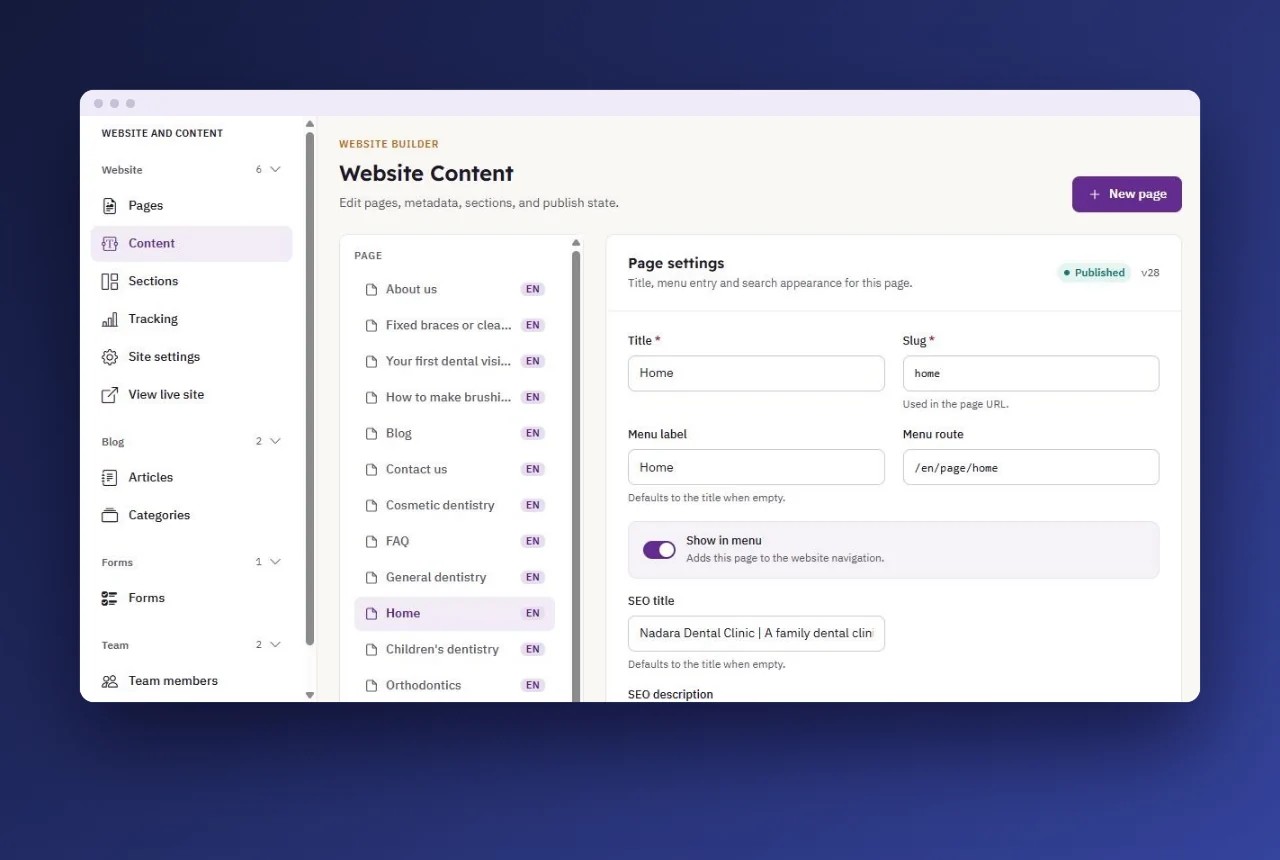
A company website should not depend on one person or on the developer for every change. A clear Dashboard lets your team edit pages, articles and forms itself; roles and permissions give each person only what their work needs; and separating the draft from publishing protects the site from mistakes.
Many companies launch their website, and then it stops on launch day. The reason is usually that every change passes through one person: the developer, an employee who knows the password, or an outside company waiting for a formal request.
The result is familiar:
The answer is a website with a Dashboard your team works from, where each person has their own account and role.
After launch, these are everyday tasks your team should do without waiting for anyone:
What needs a specialist is what touches the site's build itself: connecting the domain, technical settings and tracking tools. That is handled by whoever set up the site for you.
Information security has a known principle called "least privilege": each user gets the least access they need to do their work. The US National Institute of Standards and Technology (NIST) defines it in this sense.
On a website, that means roles such as:
When an employee leaves, review the team list and switch off their account, instead of changing a password everyone shares.
Separating the draft from publishing protects your site from mistakes:
This way a new writer can work on an article without worrying that it appears to people before it is finished.
When choosing who builds your site, ask about the Dashboard itself, not only about how the site looks:
And if you are starting from scratch, also read the steps of designing a website for your company.
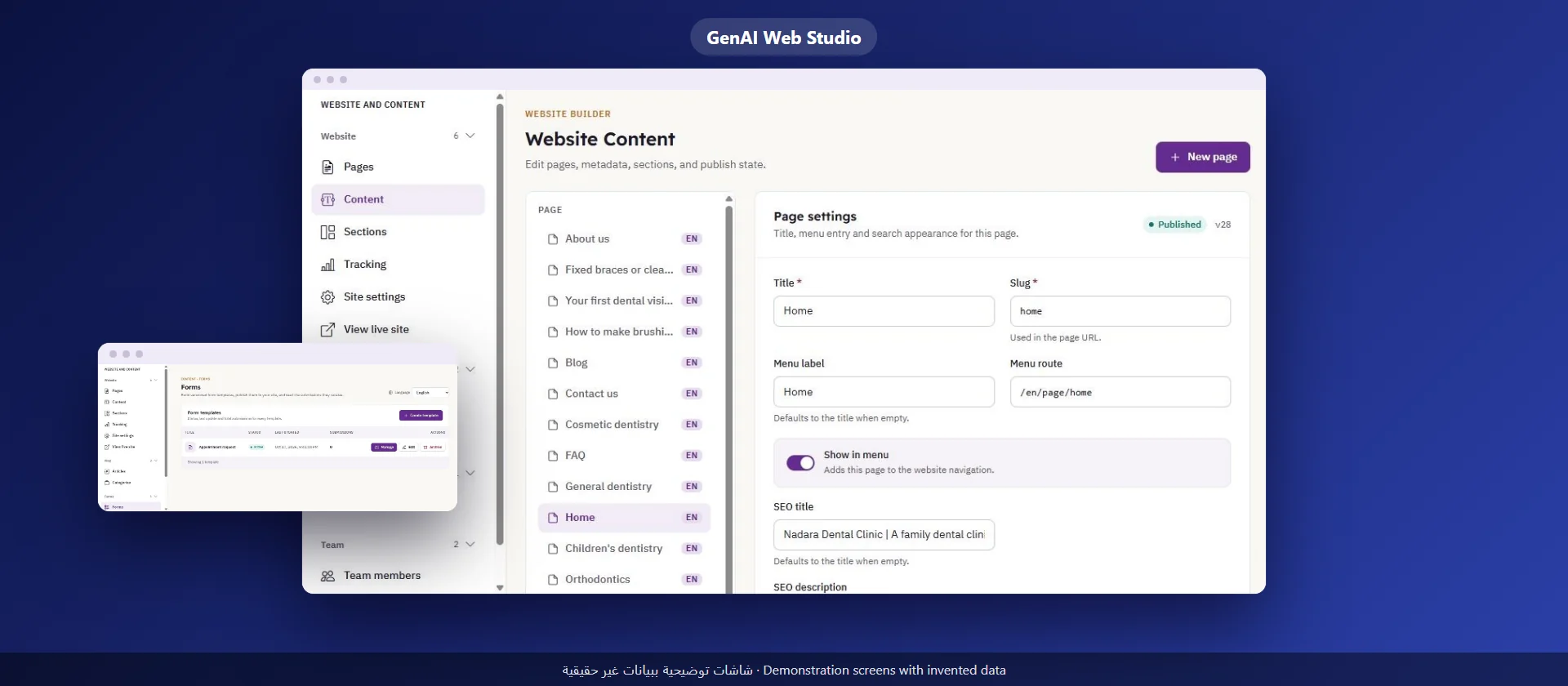
With GenAI Web Studio your team runs the website from one Dashboard:
What you should know: the Dashboard interface is in English, while you write the content in Arabic and English. Duplicating a page to the other language copies it; it does not translate it. Our team sets up the site and the first roles for you, and stays with you step by step.
No. Everyday editing is done from the Dashboard with simple fields: texts, images, sections and the menu. What touches the site's build is handled by whoever set it up.
Because you cannot tell who changed what, and an employee leaving means changing the password for everyone. One account per person with a set role is clearer and safer.
Saving keeps the change in a draft visitors do not see; publishing makes it appear on the site.
Yes, with a role that has the Blog area only, so they write articles without changing the site's pages.
A guide for clinic and medical center owners in Saudi Arabia: the pages a clinic website needs, contact from a mobile phone, and how the site stays correct after launch
Read more
A practical guide for company owners and senior staff in Saudi Arabia: how to choose a first use of AI, try it, measure it, and know what stays with your team
Read more
A guide for company owners in Saudi Arabia: contact channels on the website, what to ask in the contact form, who answers and when, and how to protect the data of those who write to you
Read more